
Description
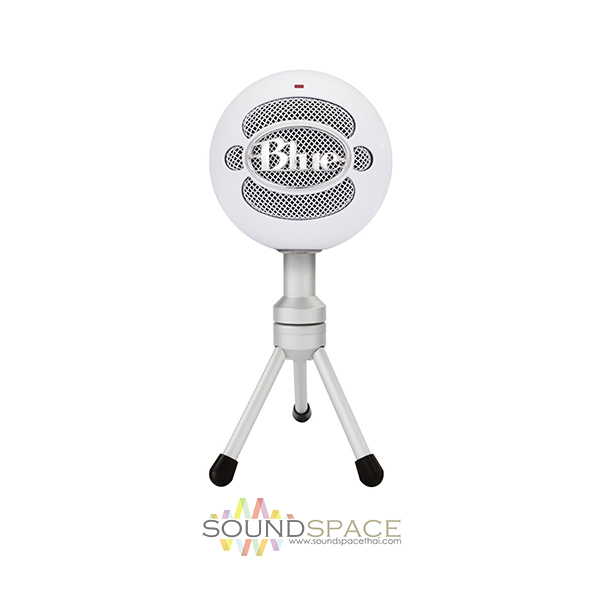
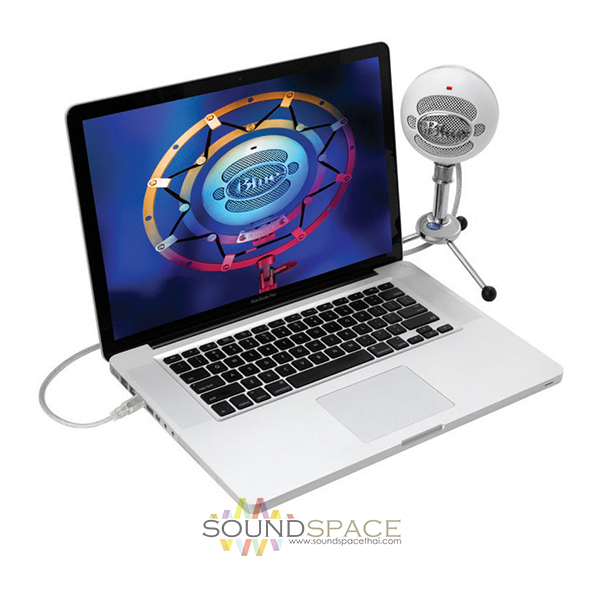
ไมโครโฟนบันทึกเสียง BLUE Microphone Snowball iCE
BLUE Snowball iCE เป็นไมโครโฟนชนิด Condenser มีทิศทางการรับเสียงแบบ Cardioid ตอบสนองความถี่ 40 Hz to 18 kHz USB Connectivity, CD-Quality Audio, Includes Stand and USB Cable
The Snowball USB microphone family from Blue Microphones is the number one selling line of USB wired condenser microphones on the planet. Their unique design and proprietary condenser capsules deliver legendary sound for everything from podcasting to recording instruments. The Snowball iCE bene ts from Blue’s legendary professional audio heritage to record at a level unmatched anywhere.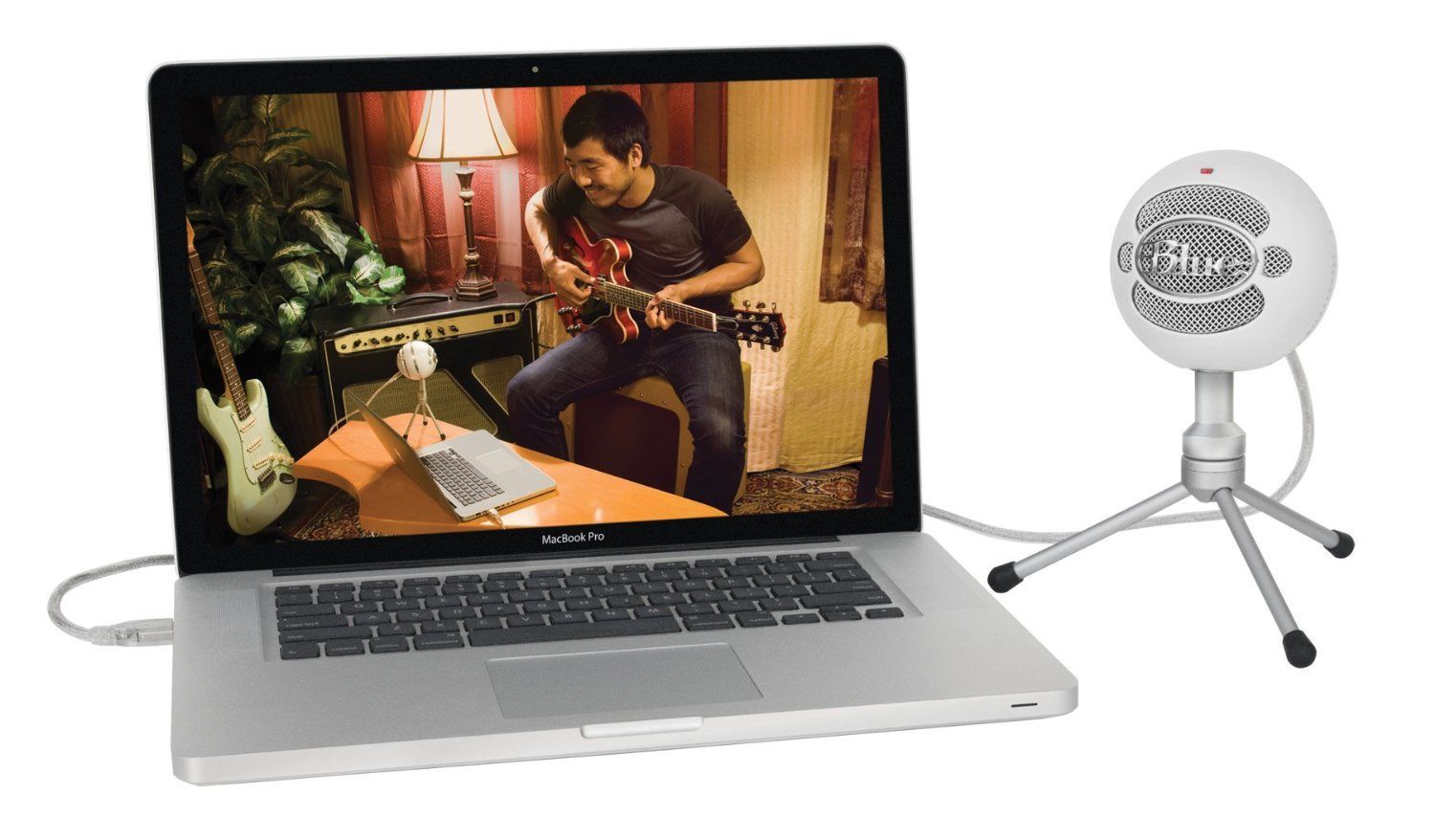
Setting up your Snowball iCE
The Snowball iCE features a unique swivel mount located on the bottom center of the mic body. Be sure to mount the Snowball iCE on its included desktop stand or on a standard-thread counter-weighted tripod mic stand. For reduction of low-frequency rumble and additional positioning options, mount the Snowball iCE in the Blue Ringer, available from your authorized Blue dealer or at our online store: www.bluemic.com/ store. Be sure to position the Snowball iCE over the center leg of the stand to further prevent tipping. Once mounted, you can gently pivot the Snowball iCE back and forth for optimum positioning in front of the sound source.
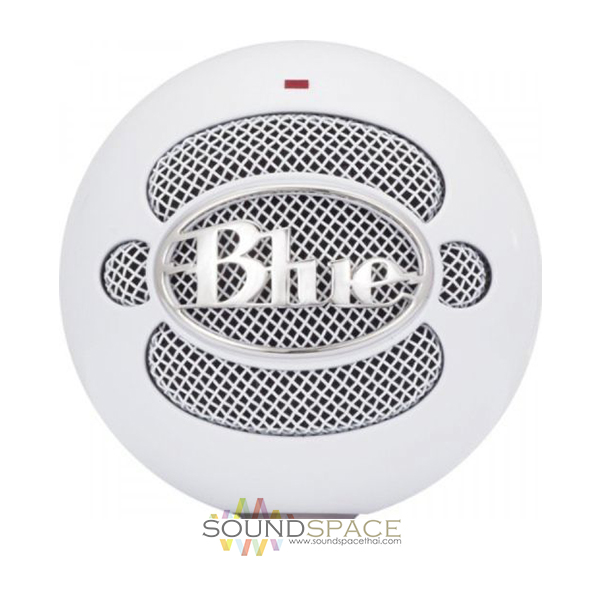
Once safely mounted, connect the Snowball iCE to the USB port on your Macintosh or Windows computer (the Snowball iCE is USB 1.0 and 2.0 compatible). If you’re using an iPad, you’ll need Apple’s iPad Camera Connection Kit for USB connectivity. Make sure that the active, on-axis side of the diaphragm (the side with the Blue logo) is facing the desired source. When connected, the LED just above the Blue logo will glow red, indicating power has reached the Snowball iCE and it is ready to record. Now you’re ready to set up your Snowball iCE on either your Mac or PC.
Macintosh Setup Procedure
- In system OSX: in the Apple menu, open System Preferences.
- Double-click the Sound preference le.
- Click on the Input tab.
- Double click Blue Snowball under
- Choose A Device For Sound Input dialog box.
- Set input volume to the appropriate level. The mic is sensitive and may require a very low volume setting.
- Exit System Preferences.
Windows Setup Procedure Windows 7, Windows Vista:
- Under Start Menu open Control Panel then select Sound. • Select Recording tab; ensure Blue Snowball is selected as Working with check mark next to the icon (Disable any alternate mic if necessary).
- Click on Properties; select the Levels tab, set your input level, click Apply, then OK. • Exit control panel.

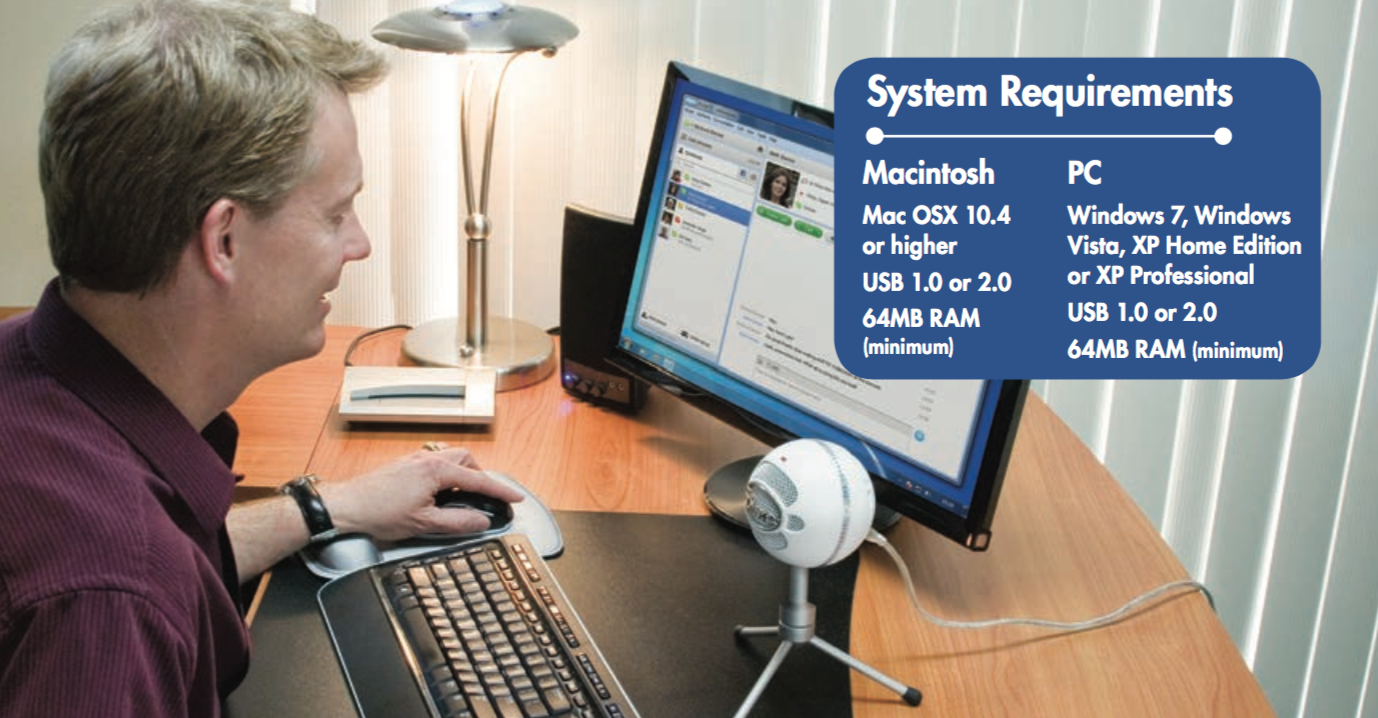
Windows XP Home Edition or XP Professional:
- Under Start Menu open Sounds And Audio Devices control panel.
- Select Audio tab; ensure Blue Snowball is selected as Default Device.
- Click on Volume; select appropriate volume level.
- Exit control panel.